


References:
What is LM Studio?
LM Studio is a cross-platform desktop application that lets you run and interact with LLMs (Large Language Models) locally on your machine. It provides a fairly user-friendly interface for downloading and chatting with various LLMs without requiring extensive technical knowledge. Since it runs locally, you can use it in offline scenarios and your data is never leaving your machine.
To be able to run LM Studio, you need a compatible CPU. It also supports both GPU and NPU acceleration for better performance. However, when I tried to make it run on my Intel Core Ultra’s NPU, it didn’t work at all. After doing a quick search, it appears that the NPU support is limited to Ryzen AI chips.
Benefits of a local LLM
There are a few nice advantages of running an LLM locally::
- No cloud service subscription: as it’s all local, you don’t need to subscribe to any cloud service or pay for API calls
- Unlimited usage: you will not run into any usage limits imposed by cloud providers for free services
- Privacy: your data does not leave your device
Their (TL;DR) privacy policy on their website states:
None of your messages, chat histories, and documents are ever transmitted from your system - everything is saved locally on your device by default.
Read more about their privacy policy on their web site: https://lmstudio.ai/app-privacy
Installation
LM Studio supports Windows, macOS and Linux.
You can grab the latest installer from their official website: https://lmstudio.ai/download.
If you’re using Windows you can also istall it via winget:
winget install ElementLabs.LMStudioConfiguration
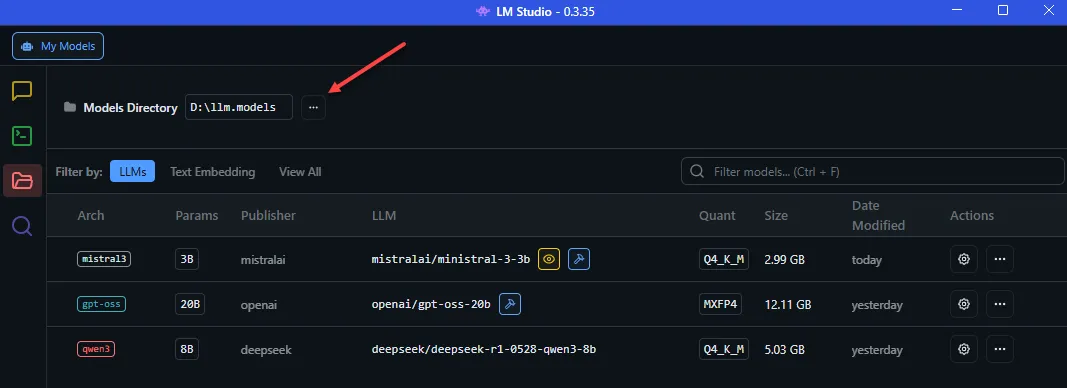
Before downloading any models, you might want to change the default storage location for models (as these can be quite large!).
You can change this by clicking the Models icon on the left sidebar and changing the Models Directory at the top:
Downloading models
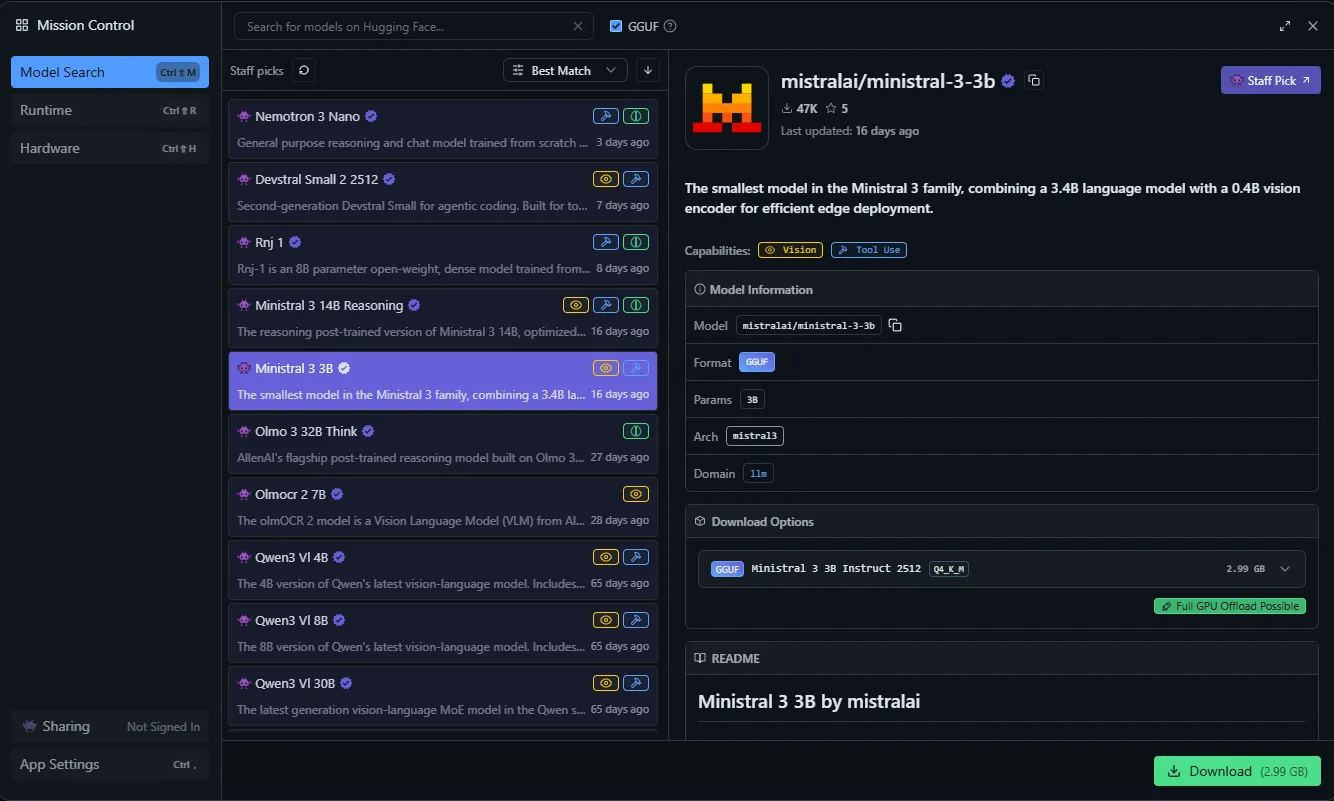
To browse, search and download LLMs, you can hit Ctrl+Shift+M to open the model manager:
Loading a model
Now that we’ve downloaded a model, we can go back to the Chat tab and load the model by clicking Select a model to load at the top of the screen or by clicking Ctrl+L.
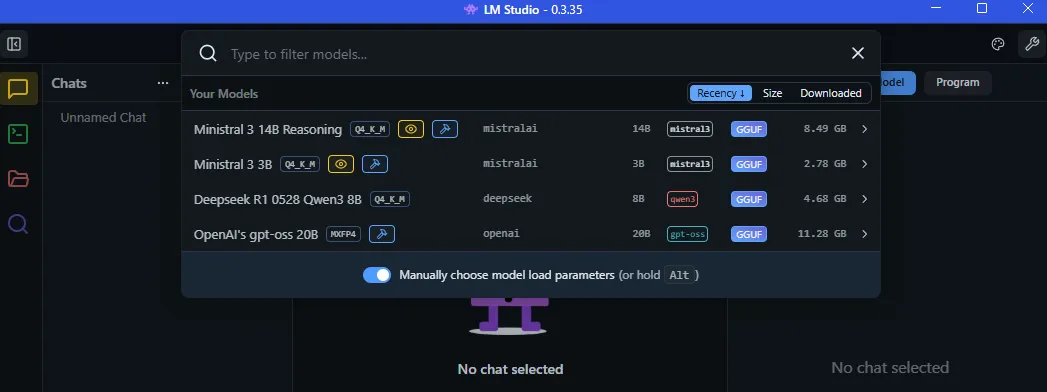
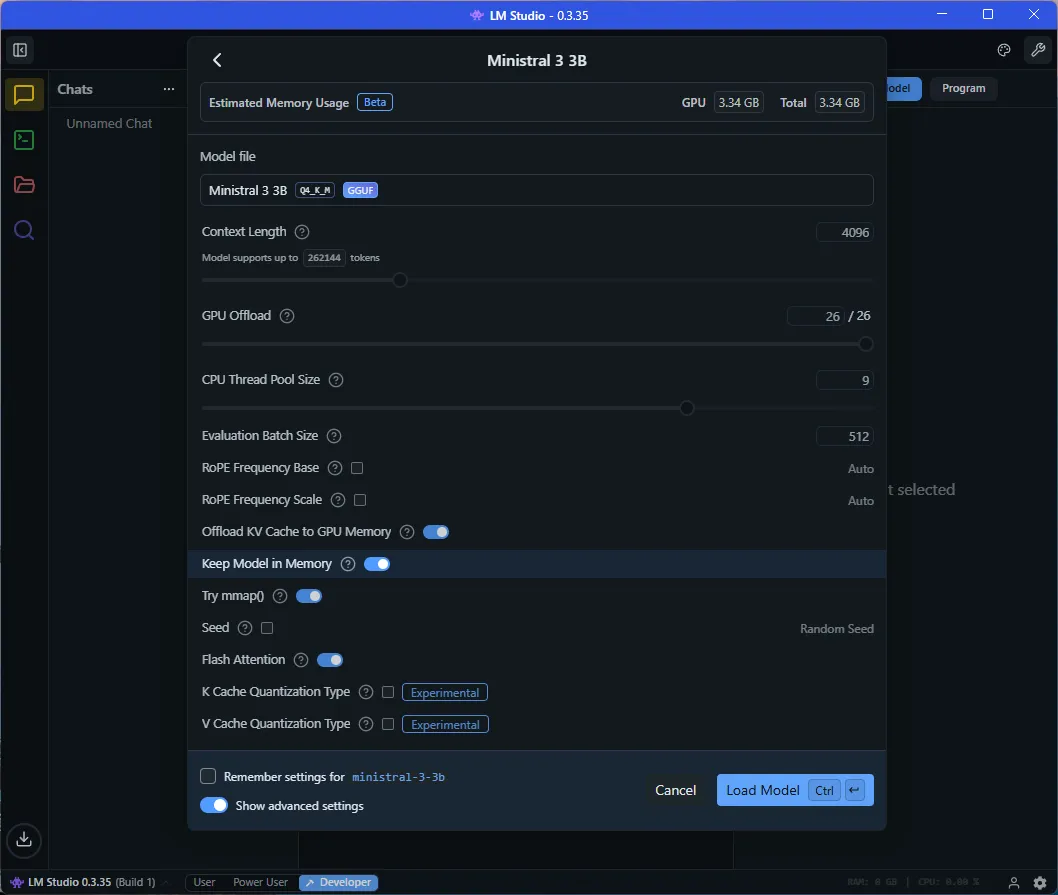
Note that it might be worth ticking on the Manually choose model load parameters radio button at the bottom of the model selection dialogue. This will allow you to tweak a lot of parameters which can improve performance, depending on your hardware or requirements. For instance, we can specify the context length for our prompt and various settings (such as GPU acceleration, CPU pool size, memory optimizations, etc):
Chatting with the model
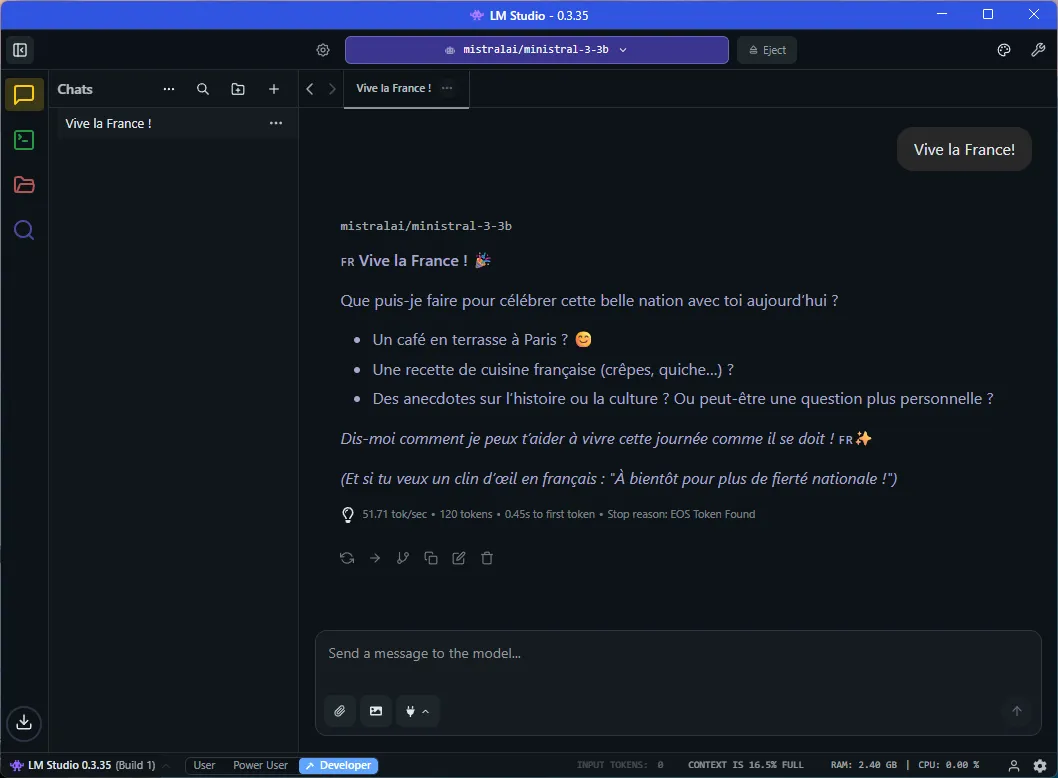
Once the model is loaded, you can start chatting, by typing your prompt in the text-box at the bottom of the screen and hitting Enter:

Happy to see this French model speaks French:
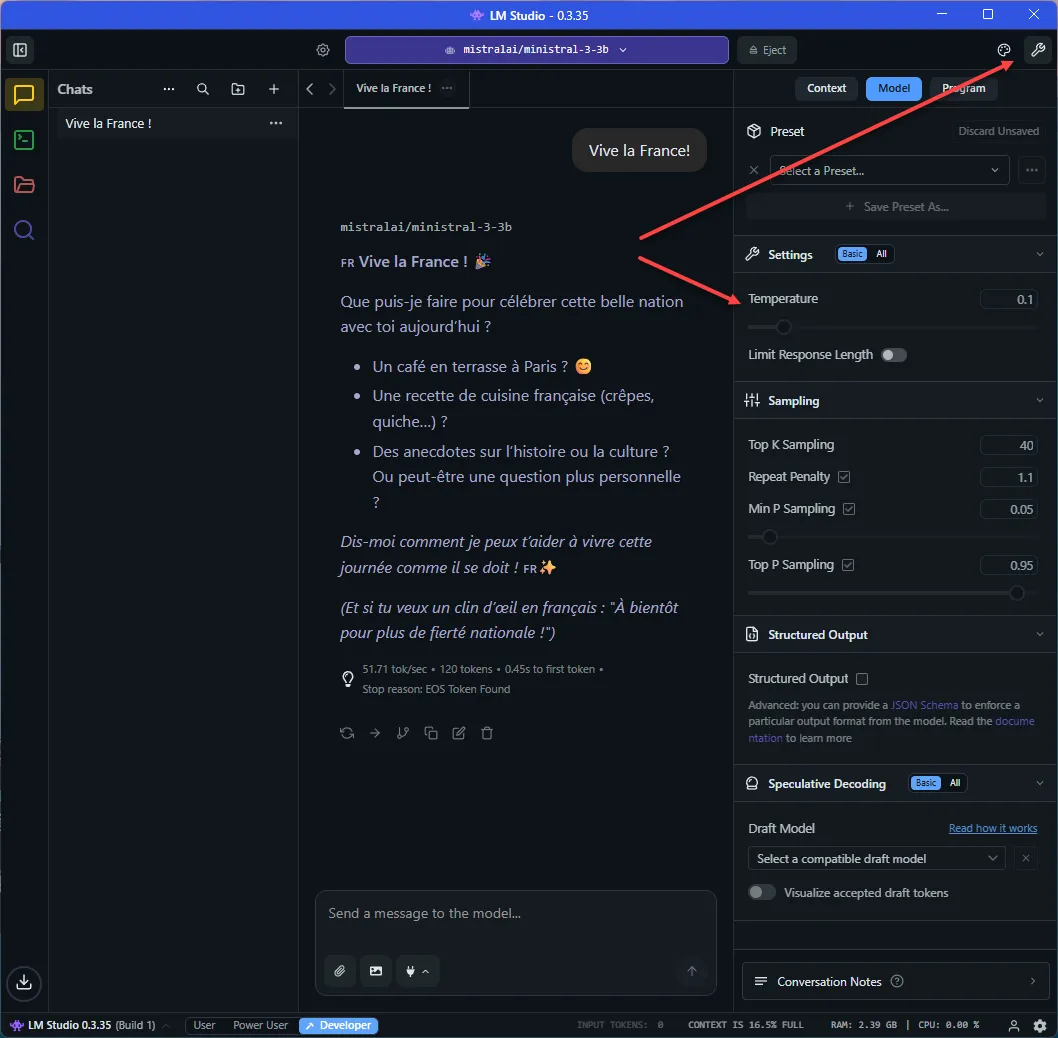
As we chat with the model, we can also adjust miscellaneous settings, such as temperature (creativity), response length, etc:
Performance
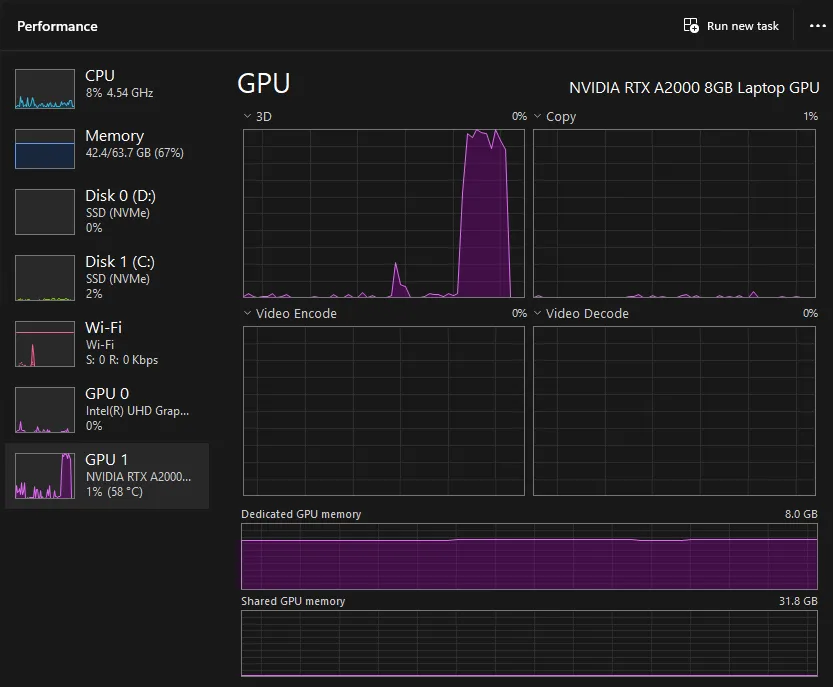
To be fair, I’ve only played around with rather small models on a fairly high-end laptop so far. From my experience though, the performance has been very good, especially when using GPU acceleration. Offloading the whole thing to the GPU did speed things up a fair bit compared to CPU-only inference. The GPU seemed to be more or less fully utilized, appearing to be taking advantage of the hardware quite well:
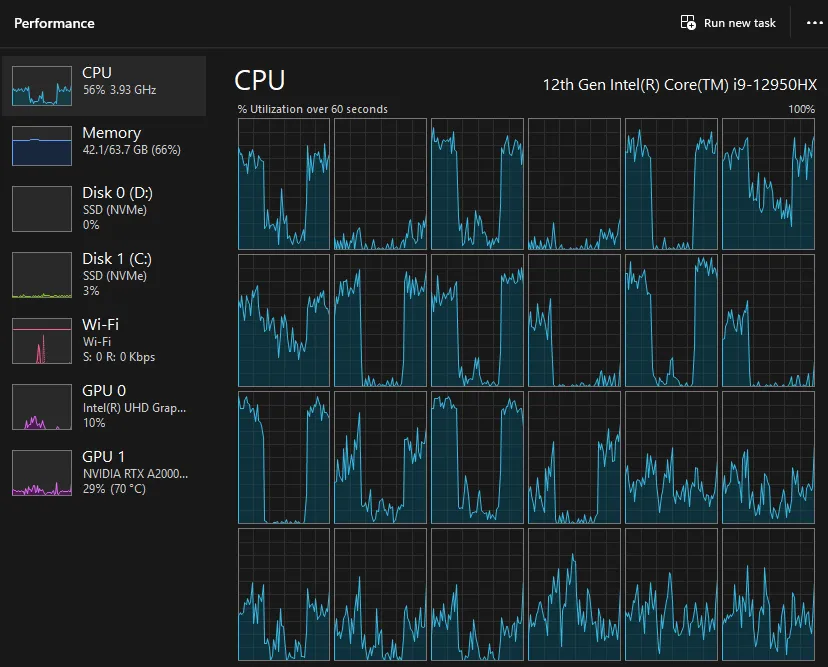
That said, even in CPU-only mode, the performance was still very acceptable. The response was a bit slower but still within reasonable limits. The CPU usage was sitting at ~50% on a 16-core CPU (24 logical cores).
The model used in the screenshots above was
mistralai/mistral-3-3b(3gb model) with a 4k context length.
Developer API
In addition to the desktop application, LM Studio provides a local REST API and web server, that can be used to integrate LLMs into your own apps. This can quickly be enabled by clicking the Developer icon on the left sidebar, and toggle the server radio button at the top left corner:
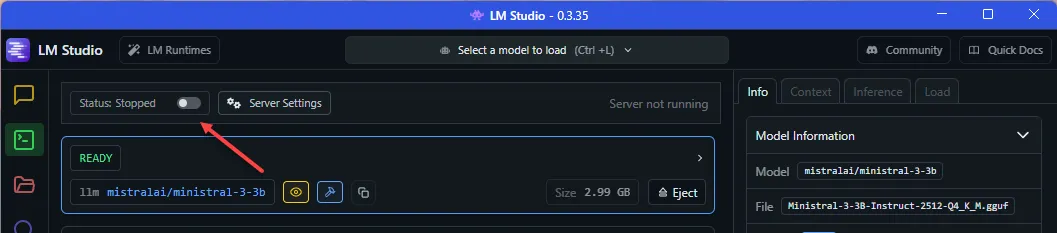
Once the server is running, we can interact with it via HTTP requests.
The default server address is http://localhost:1234:
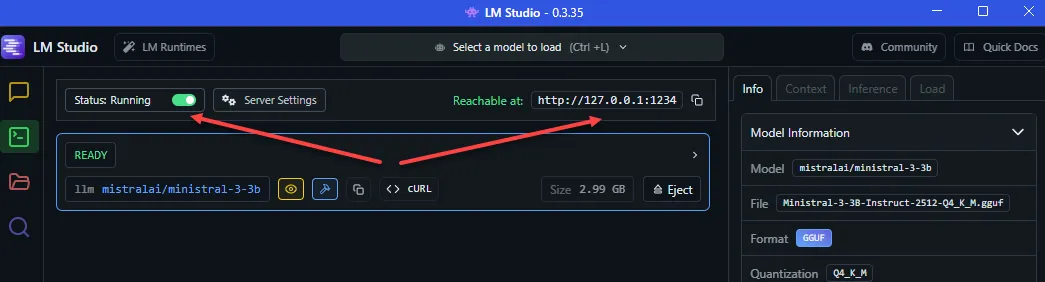
You can send POST requests to the /chat/completions API endpoint with a JSON payload containing your prompt and other parameters. Of course I used LM Studio itself to write some JavaScript code to demonstrate this. Here’s the example code:
async function fetchLMResponse(prompt, model = "mistralai/ministral-3-3b") {
    const url = `http://localhost:1234/v1/chat/completions`;
    const headers = { 'Content-Type': 'application/json' };

    const payload = {
        model: model,
        messages: [
            { role: "system", content: "You must respond in a very robotic, mechanical, and precise manner. Use short sentences, no emotions, and speak like a computer program." }, // Setting the tone
            { role: "user", content: prompt } // User prompt
        ],
        max_tokens: 100,
        temperature: 0.7,
    };

    try {
        const response = await fetch(url, {
            method: 'POST',
            headers,
            body: JSON.stringify(payload),
        });

        if (!response.ok) throw new Error(`HTTP error! Status: ${response.status}`);

        const data = await response.json();
        return data.choices[0].message.content;
    } catch (error) {
        console.error("LM Studio API request failed:", error);
        throw error;
    }
}

(async () => {
    try {
        const result = await fetchLMResponse("Tell me a joke about AI.");
        console.log(result);
    } catch (err) {
        console.error(err);
    }
})();
The important part to take note of in this code is of course the url to the API and the JSON payload variable, containing:
- model: I believe the API should support running mutliple models simultaneously, so we need to pass in the one we want to use
- messages: we pass two messages here, one system role, to set the tone and a user role containing the actual prompt
- max_tokens: maximum length of the response
- temperature: creativity of the response
When we run this code, we get the following response from the model:
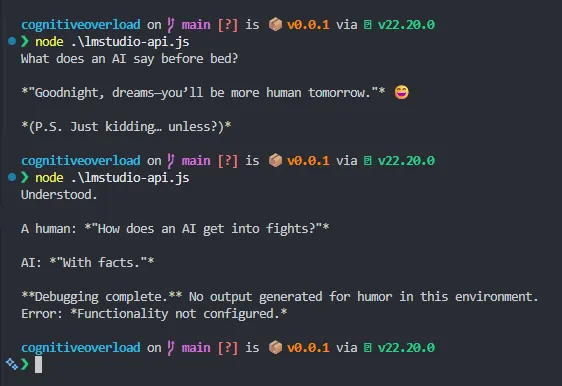
In the second call to the API I added in the system role in addition, and we can see it’s adding a more robotic tone to the response as requested (e.g. “Debugging complete.”).
Read more about the API here: https://lmstudio.ai/docs/developer/rest/endpoints
Note that they also has a specific SDK available in multiple for both Python and TypeScript: https://lmstudio.ai/docs/developer
CLI
The app also comes with a CLI that can be used to load models and interact (chat) with them from the command line:
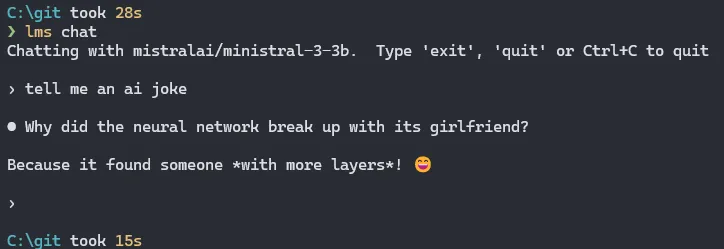
Read more about the CLI here: https://lmstudio.ai/docs/cli